Weekly planning
How to plan your weekly workload in Notion
By OGA Studio ·
A calendar with a few open spaces can still hide an overloaded week. Meetings, admin, time off and unfinished project work all use the same hours. Weekly capacity planning gives you a consistent way to compare a new request with the work you have already agreed to do.
1. Start with the hours you can actually allocate
Choose one week and enter your working hours. Subtract time off, admin and a buffer for work that is difficult to predict. The remainder is your project budget, not a promise that every hour will be productive.
For example, a 40-hour week with 8 hours off, 5 hours of admin and a 3-hour buffer leaves 24 hours for planned project work. Choose your own deductions; these numbers are an example, not a recommended schedule.
| Item | Hours |
|---|---|
| Working hours | 40 |
| Time off | −8 |
| Admin | −5 |
| Buffer | −3 |
| Available for project work | 24 |
2. Put a piece of each project into a specific week
A whole-project estimate is not enough to plan next Tuesday. Break the expected effort into weekly allocations. If a design project needs 20 hours across two weeks, record how many belong in each week instead of assigning all 20 to both.
In a Notion setup, keep Projects, Weeks and Allocations connected. Each allocation should point to one project and one week, with a clear number of planned hours. Check for duplicate weeks and allocations so that the same work is not counted twice.
3. Compare confirmed work with everything that might proceed
Confirmed work is work you have committed to. Tentative work is a possibility that still needs agreement. Keep both visible, but do not treat them as the same commitment.
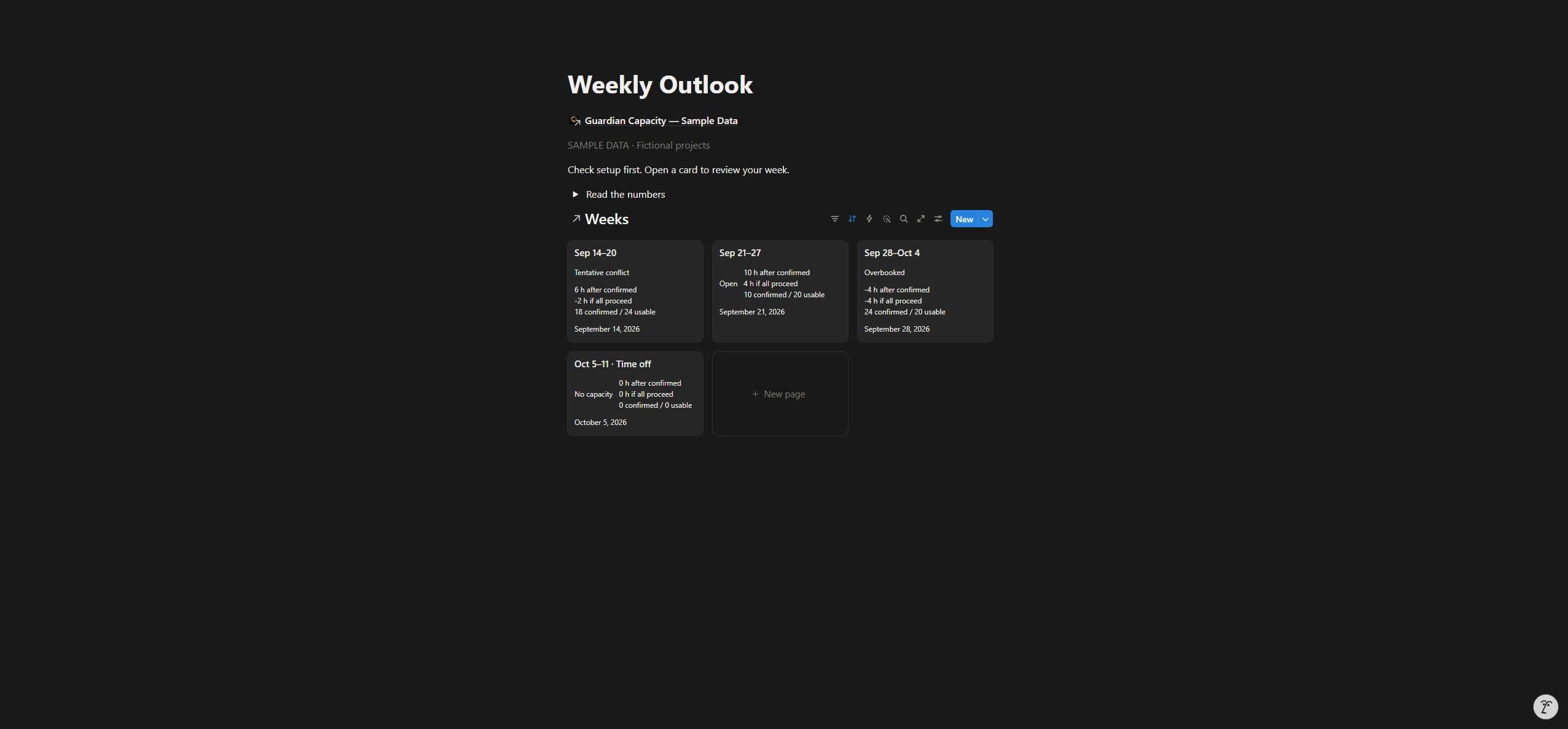
With a 24-hour project budget, 18 confirmed hours leave 6 hours. If another 10 tentative hours all proceed, the combined plan becomes 28 hours: 4 hours over the budget. Those are two scenarios for the same week.
| Scenario | Planned work | Hours remaining |
|---|---|---|
| Confirmed work only | 18 hours | 24 − 18 = 6 |
| All tentative work proceeds | 18 + 10 = 28 hours | 24 − 28 = −4 |
4. Change the commitment, date or scope
When the all-proceed scenario is over capacity, use the numbers to start a conversation. You might move part of the work to another week, reduce the agreed scope, or decline the extra commitment. Increasing your working-hours budget is only useful if that extra time is actually available.
If the client confirms the work, update its state yourself. Review the plan again when an estimate changes or another project slips. A tidy weekly total is only as reliable as the hours and states you maintain.
- Review upcoming weeks before accepting a new deadline.
- Keep tentative work visible while decisions are pending.
- Revisit estimates when the work changes, rather than waiting until Friday.
Using this workflow in Guardian Capacity
Start with the Week Budget, then place the planned work in Plan Work. Use Check Setup before relying on Weekly Outlook: incomplete links or an unconfirmed budget should be resolved first.
Weekly Outlook compares confirmed work with the scenario where tentative commitments also proceed. Cancelled allocations are excluded. You enter estimates and change states manually; the template does not schedule work or detect duplicate allocations for you.
Guardian Capacity is for an independent professional planning their own time. It is not a team resource scheduler or a time tracker. Use your own estimates and judgement, and review the product page for the complete setup and limitations.