 OGA STUDIOTools for follow-through
Notion system / 006
Know your room.Before you
say yes.
Guardian Capacity for Notion
Weekly Workload Planner
See the hours you have, the work you have confirmed and the possibilities still waiting.
- ✓For independent professionals
- ✓Confirmed + Tentative
- ✓Manual weekly planning
Use a desktop or wider screen for first setup.


OGA Studio
Guardian Capacity
Room to decide
See the week before you fill it.
One week. Two views.
A free hour today.
A promise tomorrow.
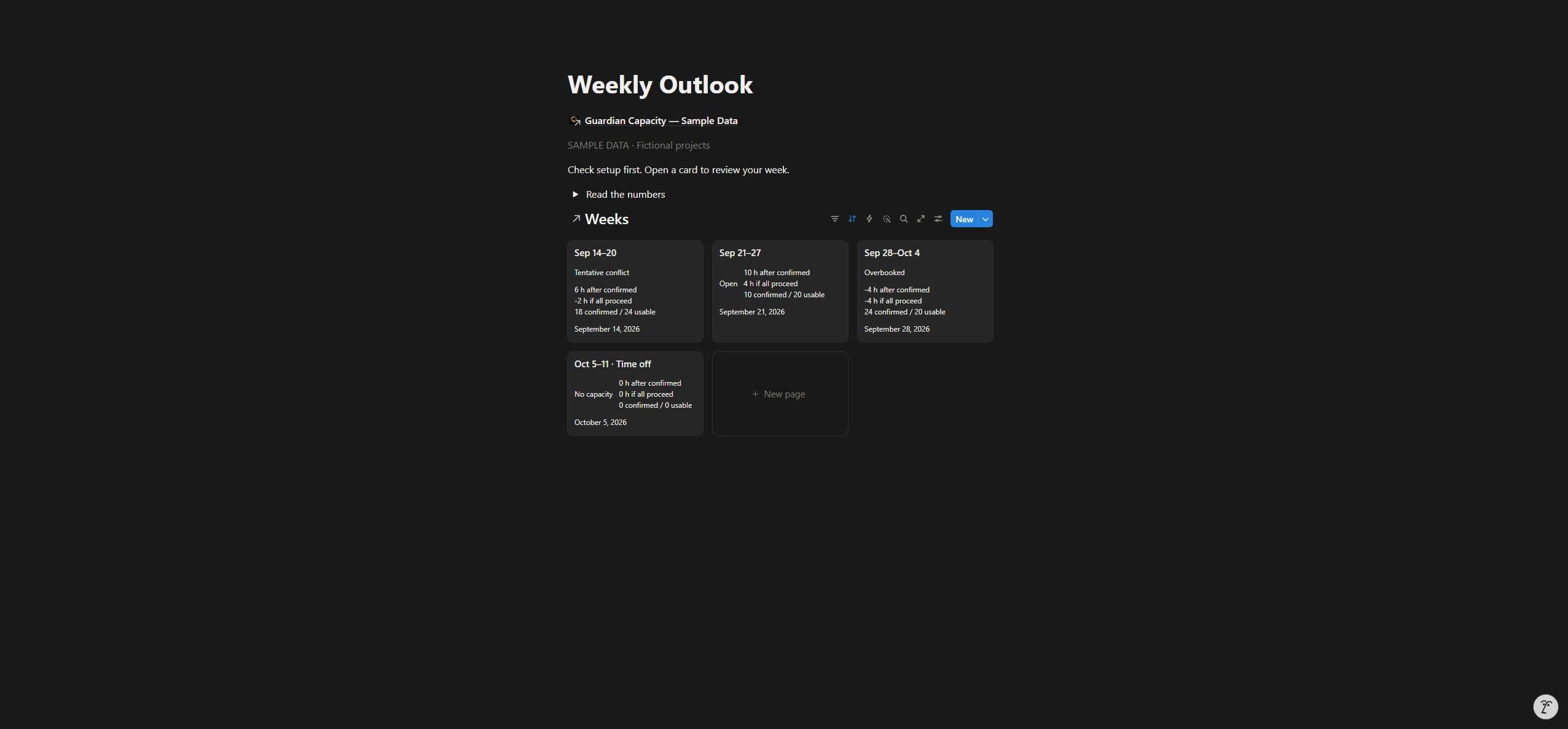
In this sample week: 24 usable hours, 18 confirmed and 8 tentative. The next commitment changes the picture.
- After confirmed work
- 6 h left
- If all tentative work proceeds
- −2 h left
A 2-hour shortfall to resolve before committing. Fictional Sample Data.
STEP 01
Set a realistic budget.
Start with working hours. Deduct time off, admin and a buffer, then confirm the week.
STEP 02
Place your commitments.
Link project estimates to a week. Keep confirmed work separate from tentative possibilities.
STEP 03
Check, then decide.
Resolve setup issues and review the outlook. Move, revise or cancel allocations manually.
Inside the planner
Make room for the right work.
Real Notion screenshots · Fictional Sample Data · Your copy starts empty.
See both capacity scenarios
Compare hours left after confirmed work with the scenario where every tentative commitment proceeds.
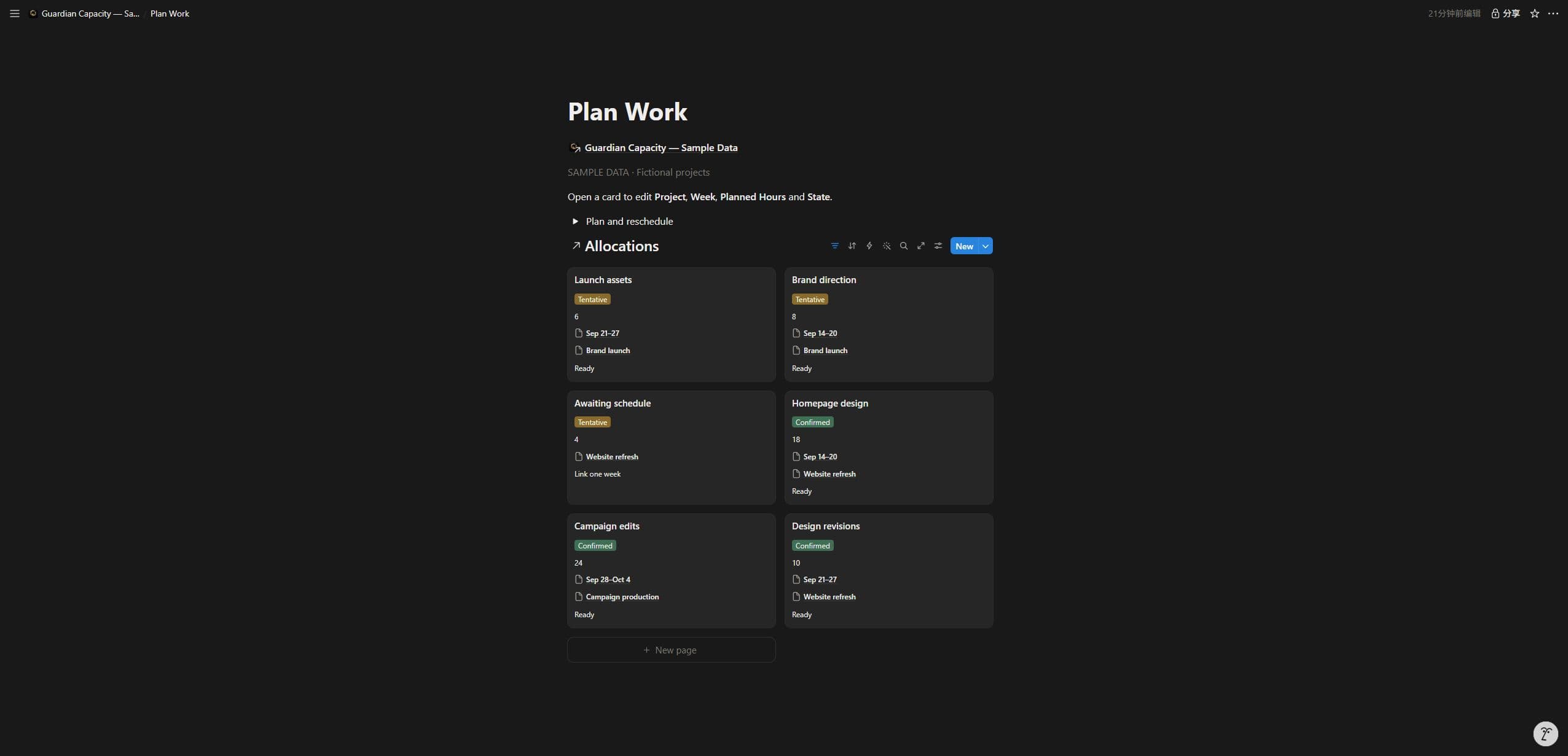
Place work in a specific week
Link each allocation to one project and one week. You choose the planned hours and set its state manually.
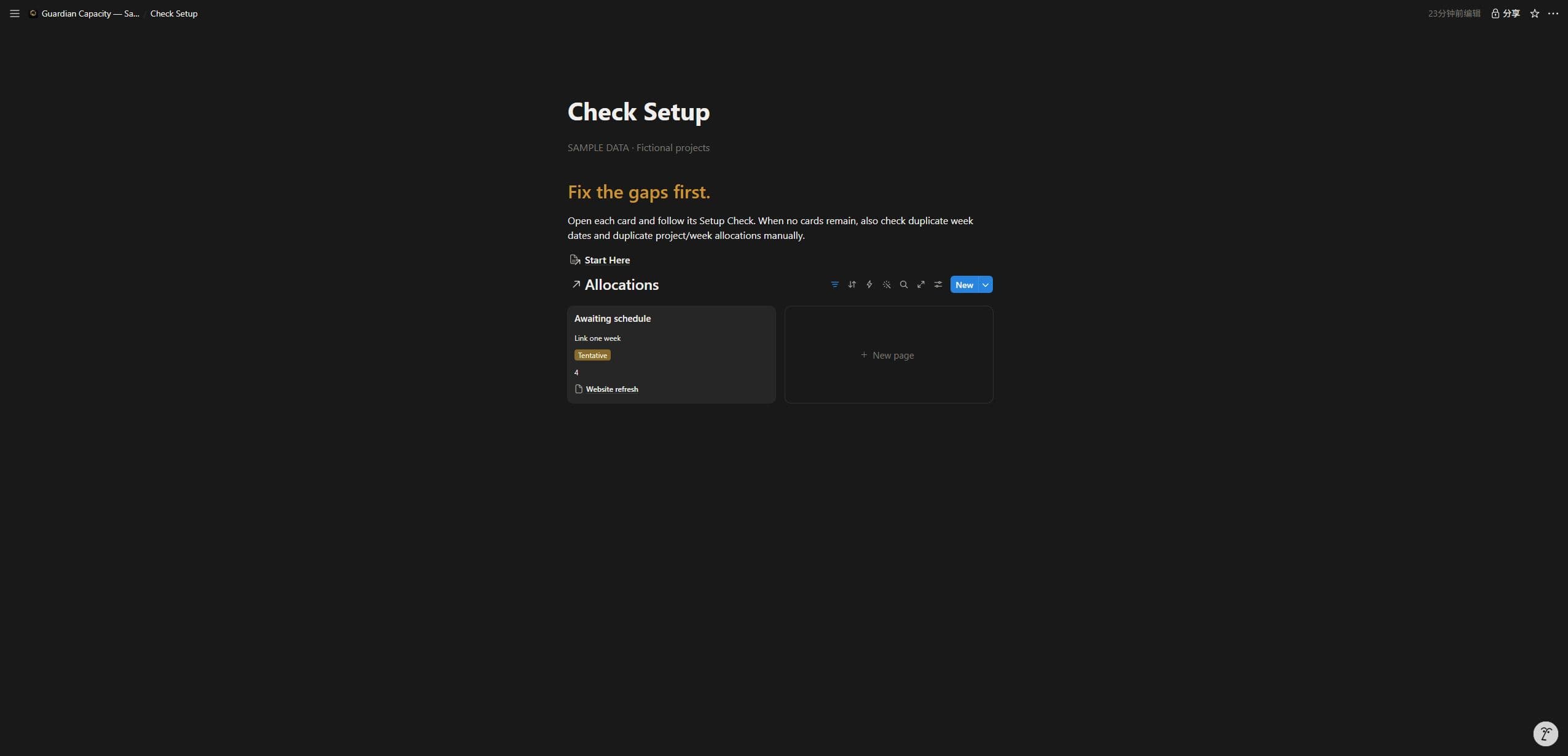
Check the missing pieces
Review setup issues before trusting your outlook. Check duplicate weeks and duplicate allocations yourself.
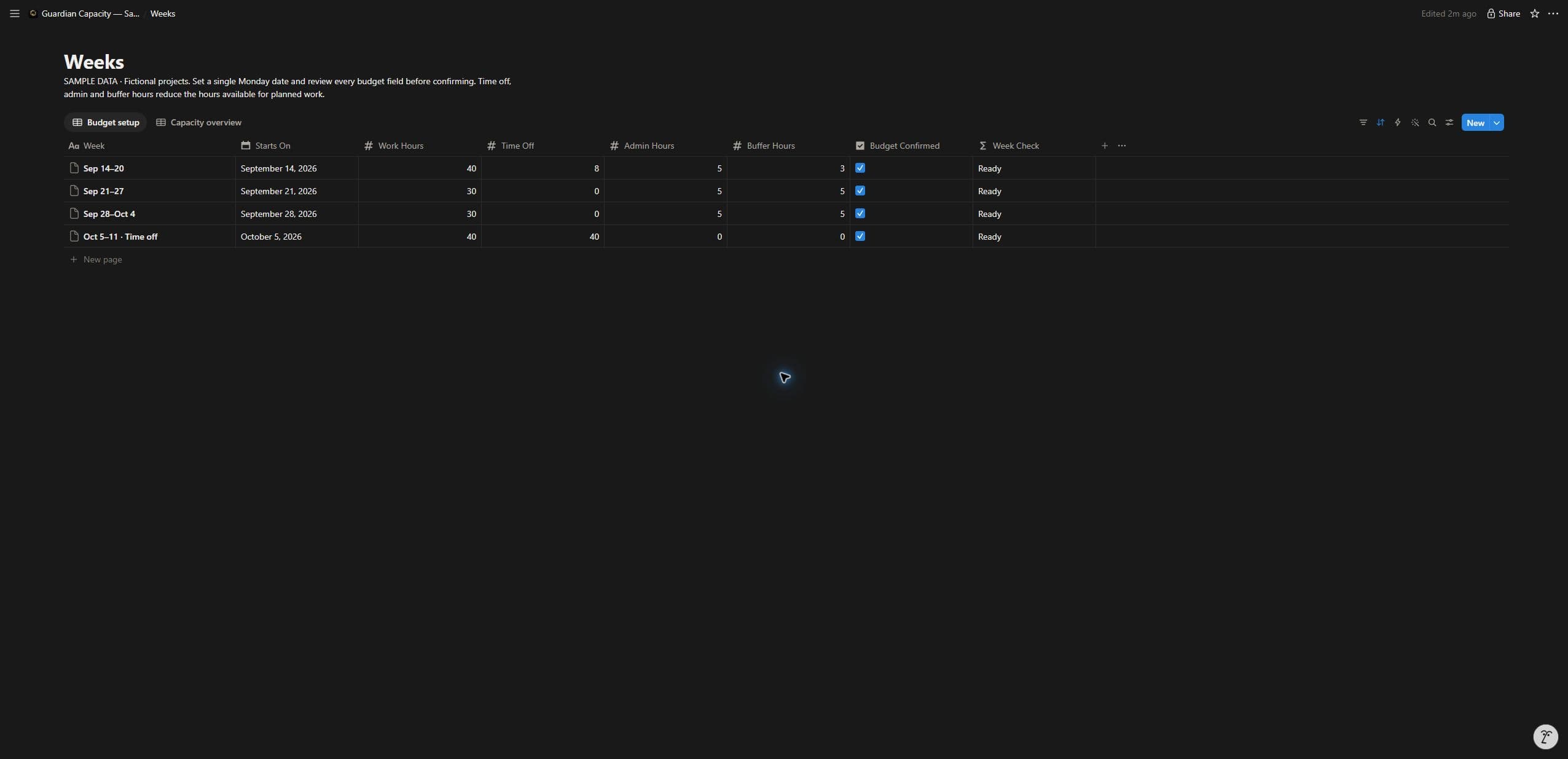
Leave room for time off and admin
Subtract time off, admin and buffer hours from working hours, then confirm the budget. Blank deductions count as zero.
Start from one quiet home
Open Check Setup, Weekly Outlook and Plan Work from the main page. The included cover and icon keep the workspace together.
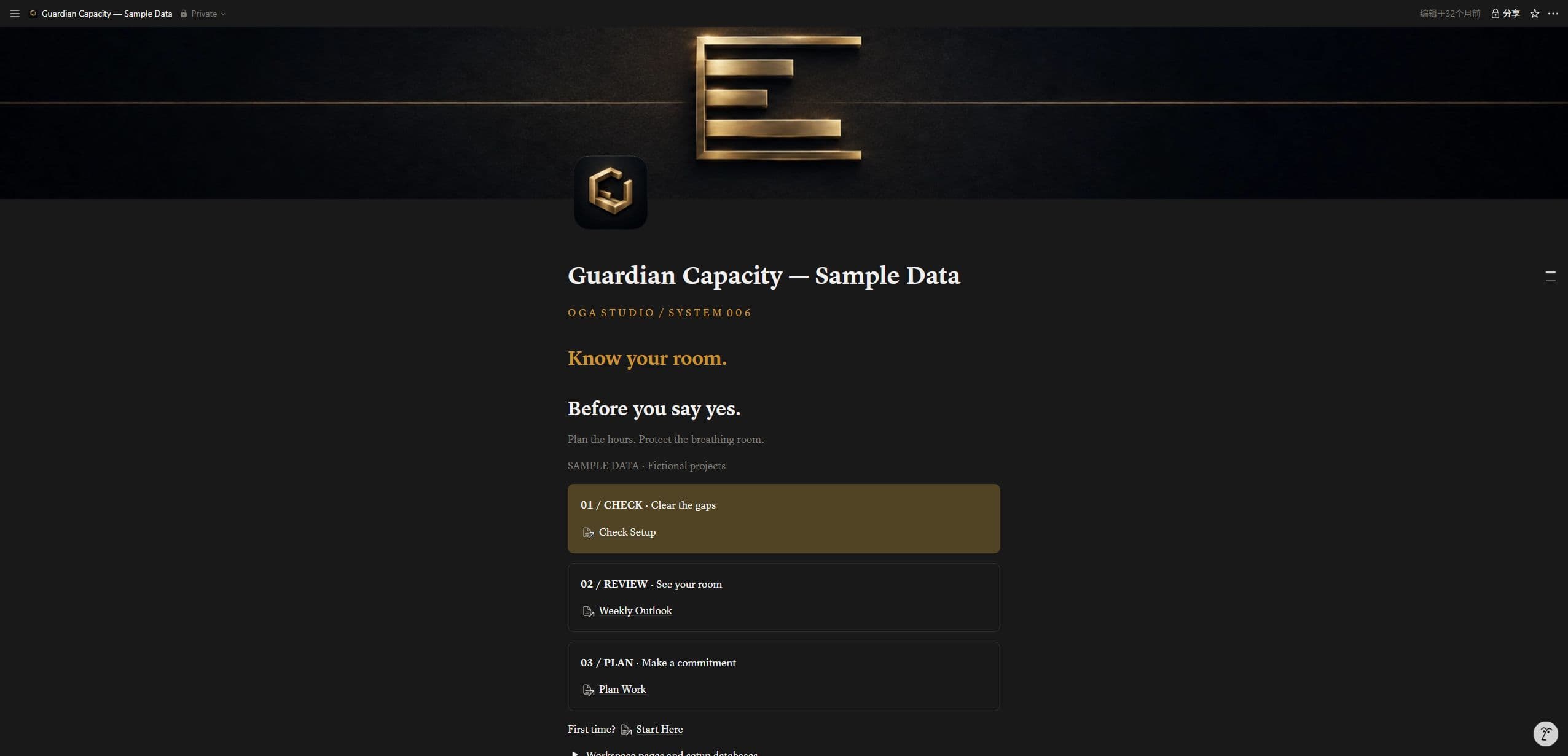
Guardian Capacity
Plan your workload.
Keep your room.
- ✓Projects, Weeks and Allocations — three connected databases
- ✓Weekly outlook, setup checks and two capacity scenarios
- ✓Short HTML opening guide and seven English reference documents
- ✓Guardian cover, icon and personal / solo-business license
An empty template for your own work. Notion account and internet access required.
One-time launch price
$15 USD
Continue to checkout on Payhip. One-time purchase; no subscription.
Before you start
Know what you are getting.
Who is it for?
Independent professionals who estimate their own project work by week. It helps you compare commitments before accepting more work; it is not a multi-person resource scheduler.
What is the difference between Confirmed and Tentative?
Confirmed work reserves hours. Tentative work appears in the all-proceed scenario so you can see what would happen if every possibility went ahead. You change the state yourself. Cancelled allocations use no hours.
Does it schedule work automatically?
No. You enter estimates, choose weeks and update states manually. There is no automatic scheduling, calendar sync, time tracking, invoicing, revenue forecasting, notification service or client messaging.
What should I check before reading the numbers?
Confirm each week’s budget and resolve Check Setup items. Each active allocation needs exactly one project, one week and positive planned hours. Invalid allocations are excluded from capacity totals, so missing work can make a week look freer than it is. Duplicate weeks and duplicate allocations need a manual check.
Can I use it on my phone?
Use a desktop for initial setup and detailed editing. Notion’s narrow desktop layout can require horizontal scrolling. Full phone, touch and Notion mobile-app use have not been verified.
What do I receive?
A ZIP with a short HTML opening guide, seven English reference documents, and the Guardian Capacity cover and icon. The guide links to the template so you can duplicate it into your own Notion workspace. Your copy starts with no project, week or allocation records.
What do I need, and what does the license cover?
You need a Notion account and internet access. The described workflow has no paid automation dependency. The license covers one purchaser’s personal or solo-business use; multi-person team use, reusable client handoff and redistribution are not included.
Will my workspace look like the screenshots?
The screenshots show the real Notion template with fictional Sample Data. Your copy starts empty. Notion controls the theme and layout; choose dark mode for the darker appearance. Copy checks so far cover the same account and workspace, not an independent buyer account.
A manual planner for weekly estimates. No automatic scheduling, calendar sync or time tracking. Planning figures do not guarantee delivery dates.